Modes List
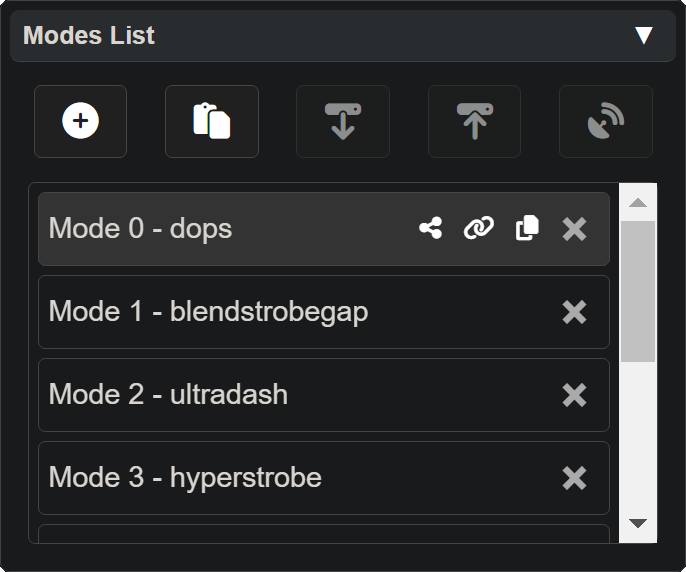
The Modes Panel manages the list of modes on your device.
A mode is a complete set of patterns and colors — one per LED.
You can add, delete, copy, share, and transfer modes between your device and the editor.
Toolbar Buttons
These buttons sit at the top of the panel:
| Button | Action |
|---|---|
| Add | Creates a new random mode at the end of the list |
| Paste (Import) | Imports a mode from JSON on your clipboard |
| Load (Pull) | Loads all modes from your connected device into the editor |
| Save (Push) | Saves all modes from the editor to your connected device |
| Broadcast | Transmits the selected mode to a Duo device |
| Listen | Listens for an incoming mode from a Duo device |
The Push/Pull and Duo buttons are disabled until a device is connected.
Mode Entry Buttons
Click a mode in the list to select it. When selected, action buttons appear next to its name:

- Share — opens a dialog to share the mode with the Vortex Community
- Link — generates a compressed URL for the mode and copies it to your clipboard
- Copy — copies the mode’s JSON data to your clipboard
- × Delete — removes the mode from the list (cannot be undone)
The Share, Link, and Copy buttons only show when a mode is selected. The Delete button is always visible.
Working with Modes
- Select a mode by clicking it — the editor switches to it so you can edit its patterns, colorsets, and parameters.
- Pull from device to load your device’s modes into the editor, edit them, then Push to save your changes back.
- Import a mode from a shared URL or JSON snippet to load it into the editor.