Colorset Controls
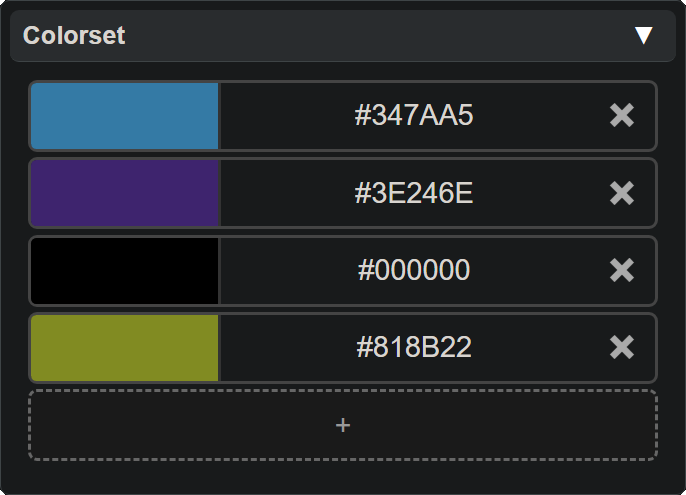
The Colorset Panel shows the list of up to 8 colors for the selected LEDs of the current mode.
Key Features
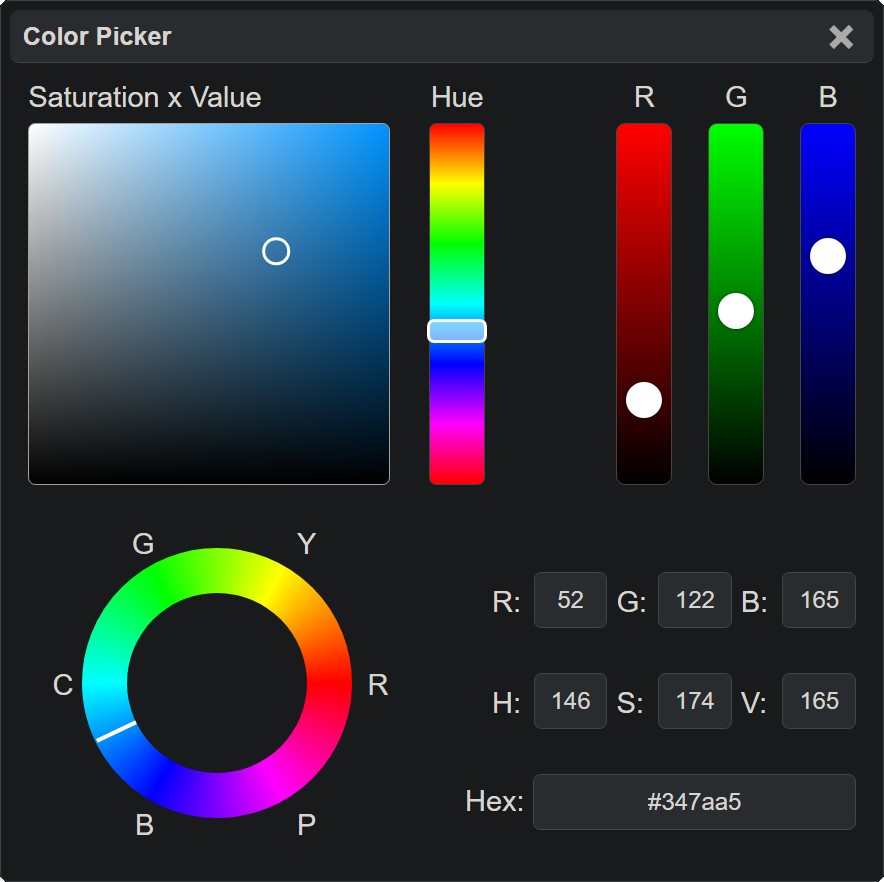
- Color Swatches: Each color in the colorset is shown as a swatch. Click a swatch to open the Color Picker and modify it. The first swatch is highlighted with a white border to indicate the main selected LED.
- Add Color: The + button adds a new color to the colorset (up to 8), opening the Color Picker immediately.
- Empty Slots: Dashed slots after the + button indicate remaining unused positions (up to 8 total).
- Delete Color: Right-click a color swatch and select Delete Color to remove it from the set.
- Drag and Drop: Drag a color swatch to reorder colors within the colorset.
- Copy / Paste: Right-click a swatch to copy a single color, or right-click the canvas for broader copy/paste options.
Colorset Generator
The generator (toggled via the chevron button below the swatches) lets you quickly create a new colorset:
- Color Count: Use the slider or number input to set how many colors to generate (1–8).
- Style: Choose from preset styles — Rainbow, Random, Pastel, Dark, Grayscale, Vibrant, Warm, or Cool.
- Brightness: Adjust overall brightness of the generated colors (10–100%).
- Generate: Click the orange Generate button to replace the current colorset.
Tips
- There is a maximum of 8 colors in a colorset.
- Black counts as ‘off’ — it can extend gaps in a pattern. Changing a color to black is not the same as deleting it.
- Use the generator to quickly build a colorset, then fine-tune individual colors with the Color Picker.
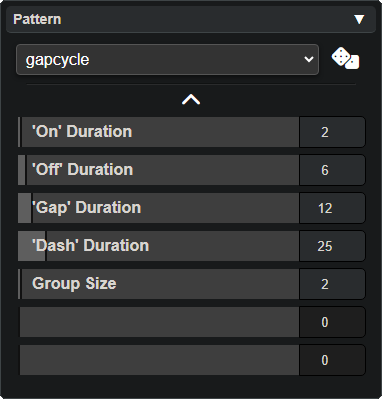
- Colorsets work together with Patterns — try different color and pattern combinations for unique effects.
- For a deeper overview of how colorsets fit into the Vortex Engine, see the Colorsets page.