Preview Animation
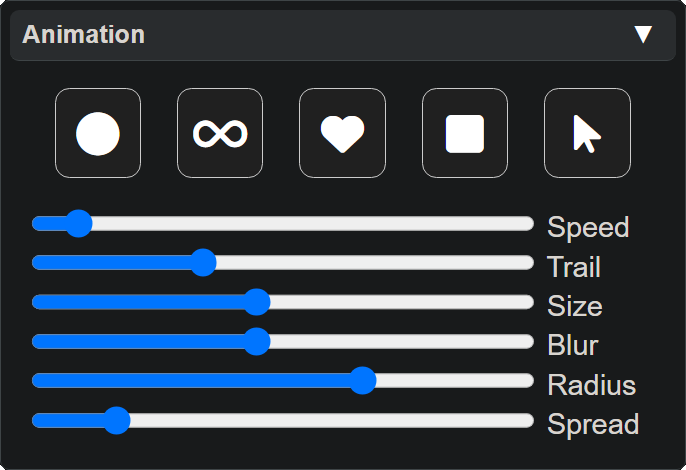
The Animation Panel controls the appearance of the preview — the spinning trail of colors shown in the editor.
Settings on the Animation Panel do not affect the device output. They only change how the preview appears on your screen.
Animation Shapes
Five buttons at the top let you choose the path the animation follows:
| Button | Shape |
|---|---|
| Circle | Circular orbit |
| Infinity | Figure-8 path |
| Heart | Heart-shaped path |
| Box | Rectangular path |
| Orbit | LEDs orbit around a center point |
Slider Controls
Six sliders tune different qualities of the preview trail:
- Speed: How fast the animation progresses
- Trail: How long the colors remain visible (the length of the trail)
- Size: The size of each blink of color in the trail
- Blur: Softness/diffusion of each blink of color
- Radius: The radius of the animation path on screen
- Spread: With many LEDs, the distance between each LED in the preview
Device Presets
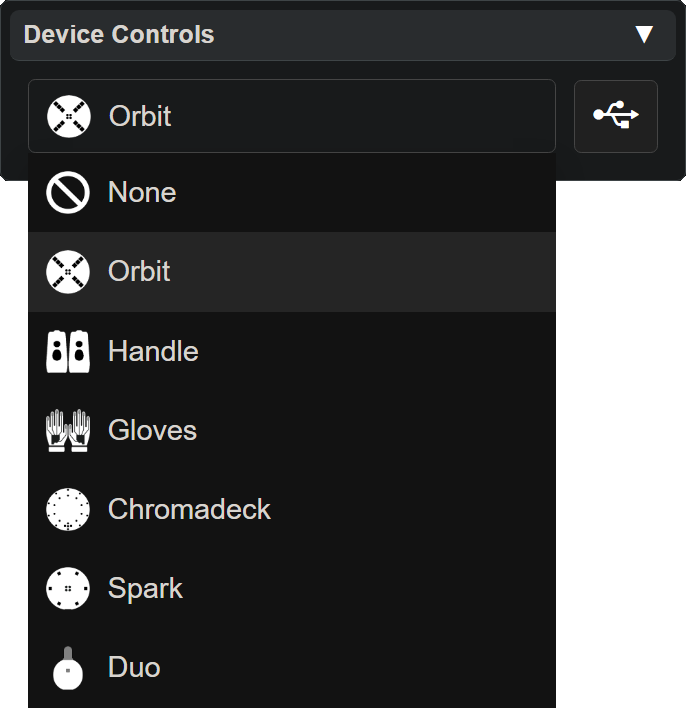
When a device is connected, the animation panel automatically applies a preset tuned to that device (orbit, handle, gloves, etc.), including a Spread slider that is hidden when no device is selected.